
The Operator Console: the screen your operators actually use during their shift.
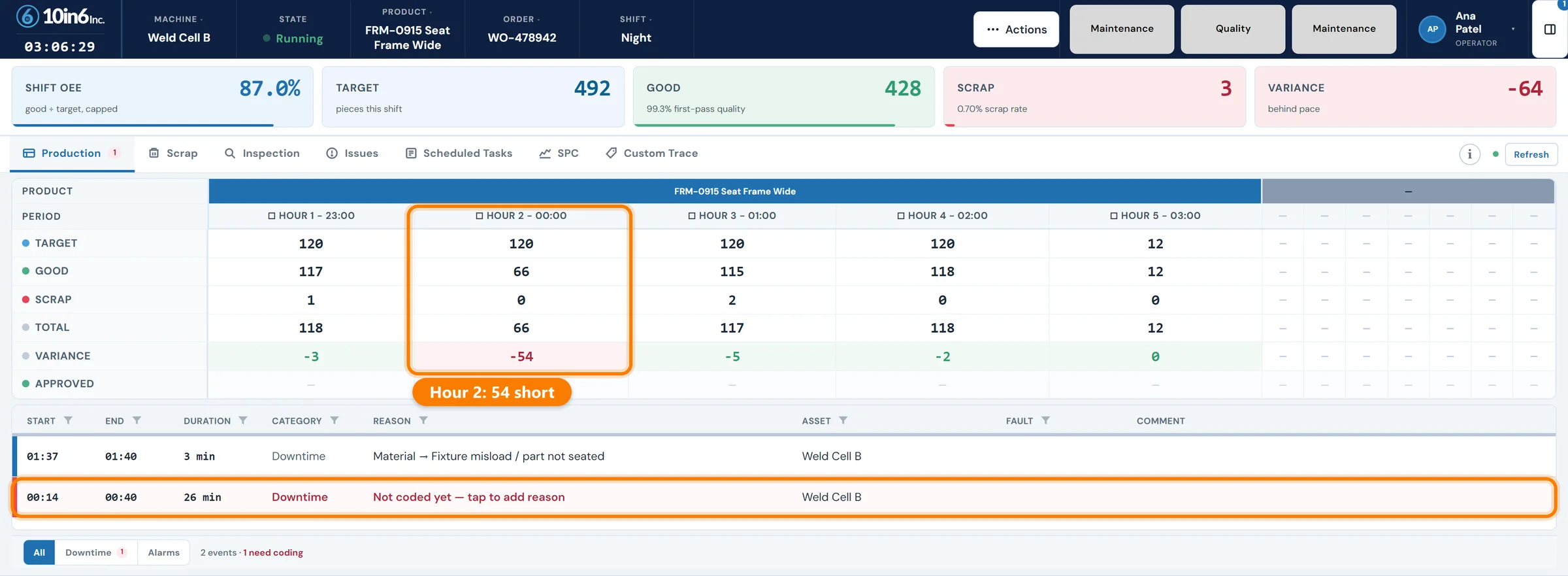
One touch-screen console for downtime, scrap, quality checks, andon calls, issues, and the hour-by-hour board — configured for the line or machine it sits on.
Improvement work runs on data from operators, and they only enter it when the screen is quick to use. The console is built for gloved hands, status you can read at a glance and the pace of the line.
Five tabs, four clipboards, and a clerk typing it all in at 5 p.m.
A press stops at 8:10. To code it, the operator scrolls a 200-item dropdown built for the whole plant, then logs in to a second system for scrap and a third for the quality check. Whatever gets skipped goes on the clipboard, which someone who wasn't there types in after the shift.
By the time the data shows up in a report it is late and often wrong, so supervisors stop trusting it and operators stop bothering to enter it. The MES rollout from two years ago is now a Friday morning Excel export.
On the Operator Console, entering the reason is quicker than skipping it, so it gets recorded at the line while the operator still remembers what happened.
What the operator enters at Weld Cell B
The console home at the top of this page holds the hour-by-hour board and the shift's stops. Scrap, inspection, issues and scheduled checks each have their own tab, and andon calls are push buttons in the header. These are the screens an operator fills in, from the same demo plant.
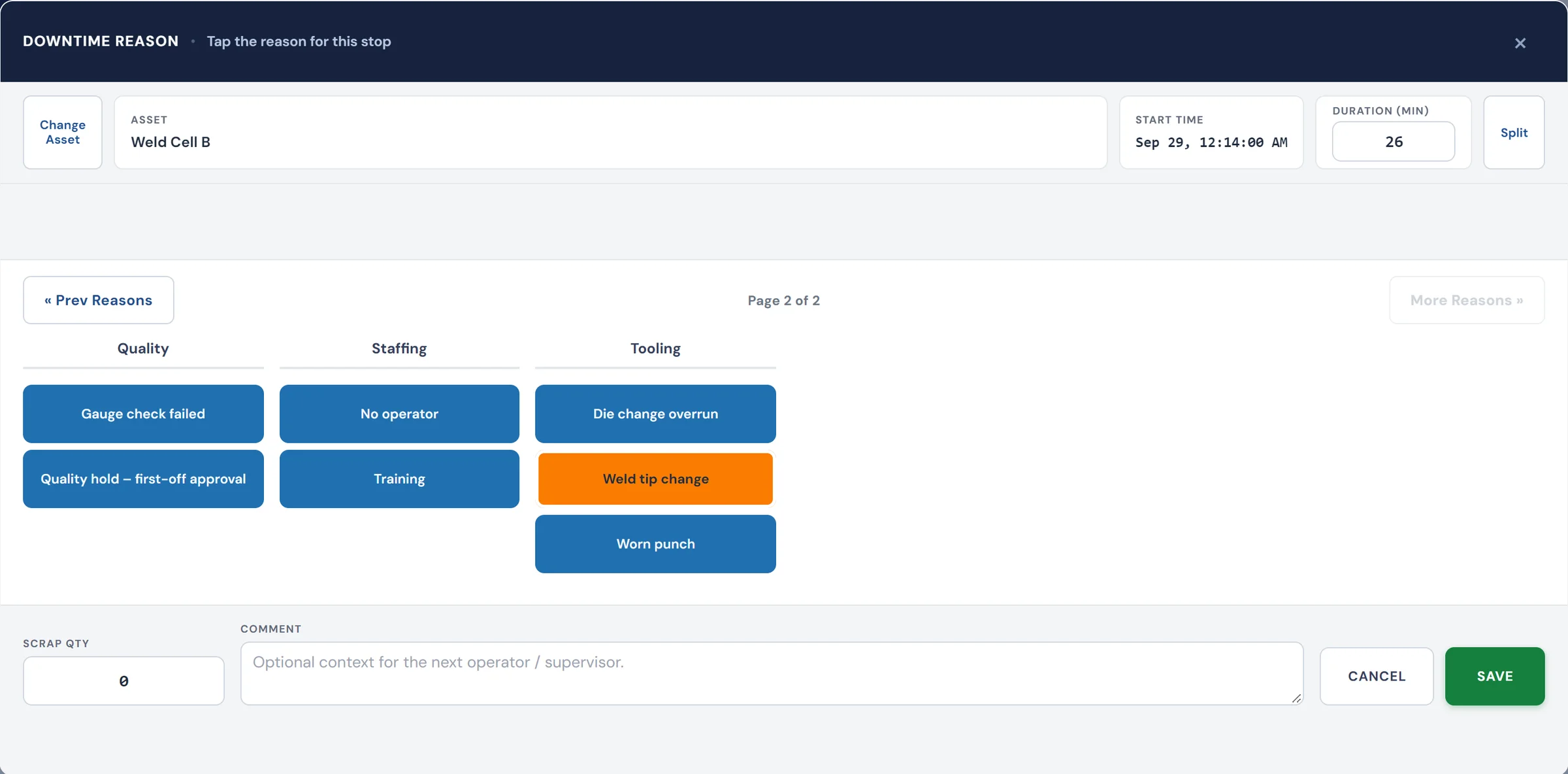
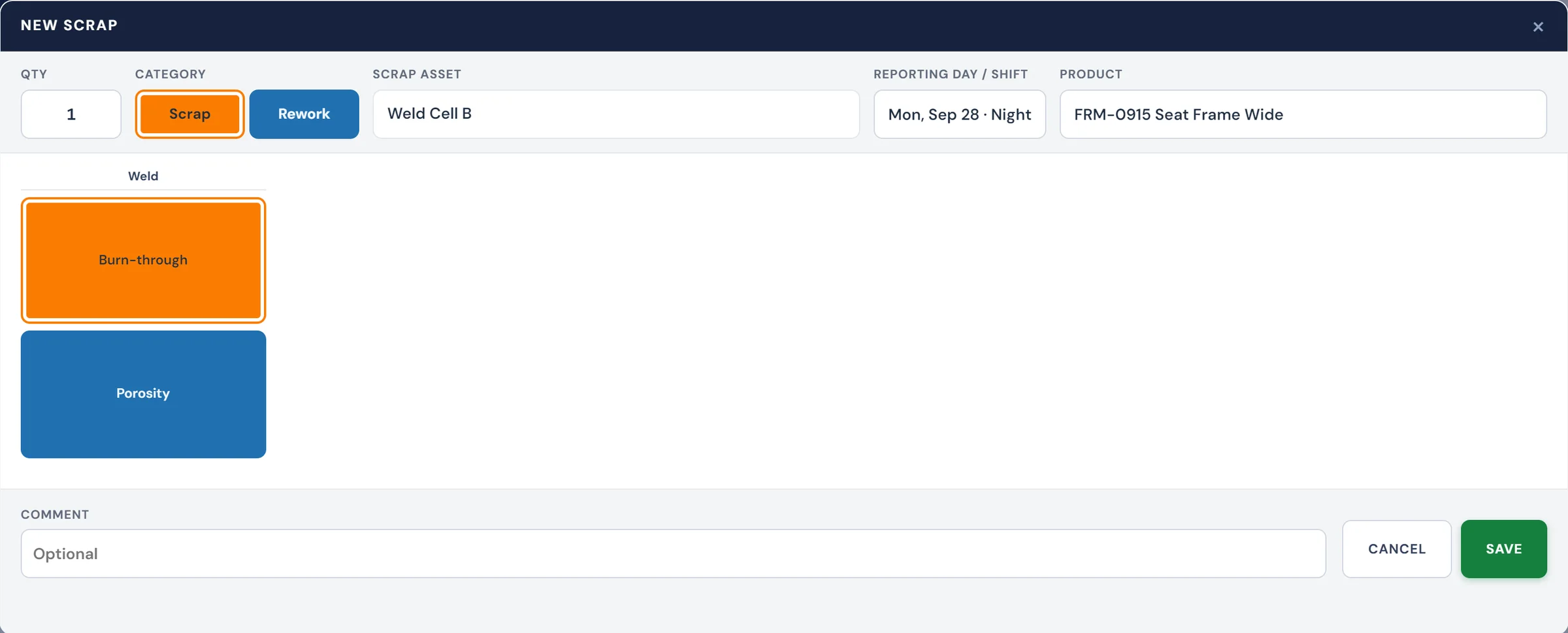
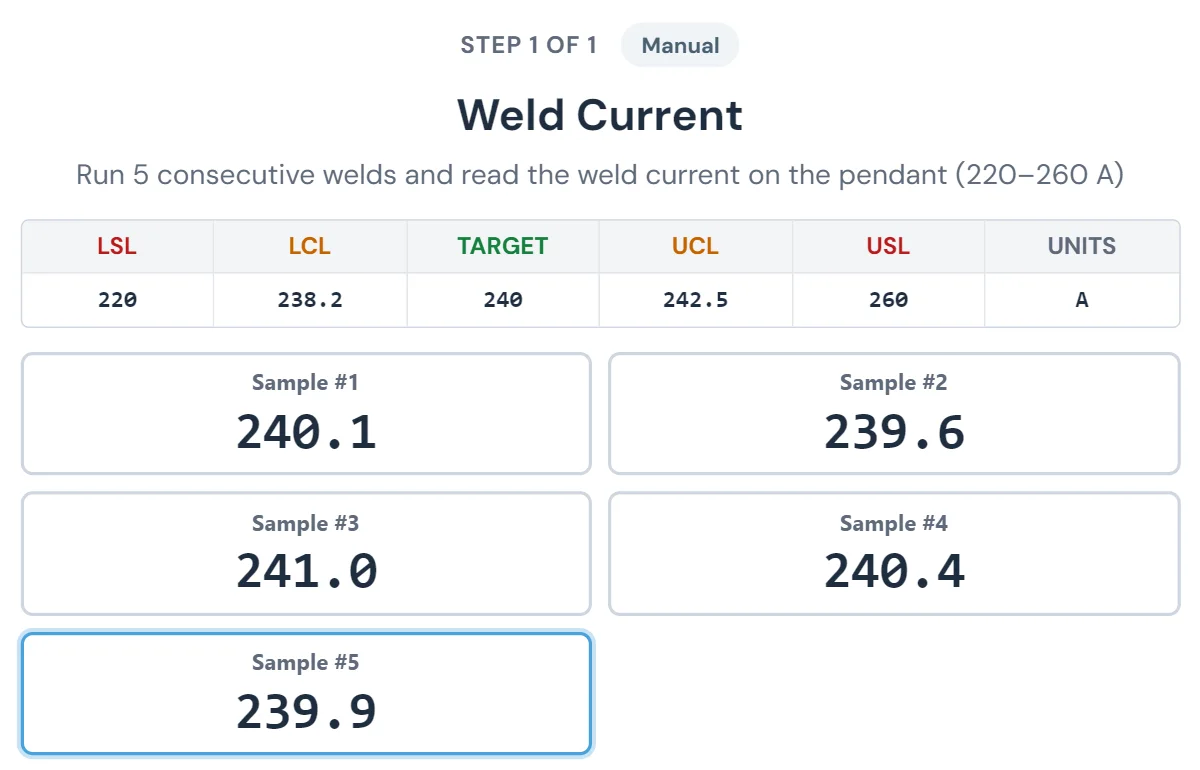
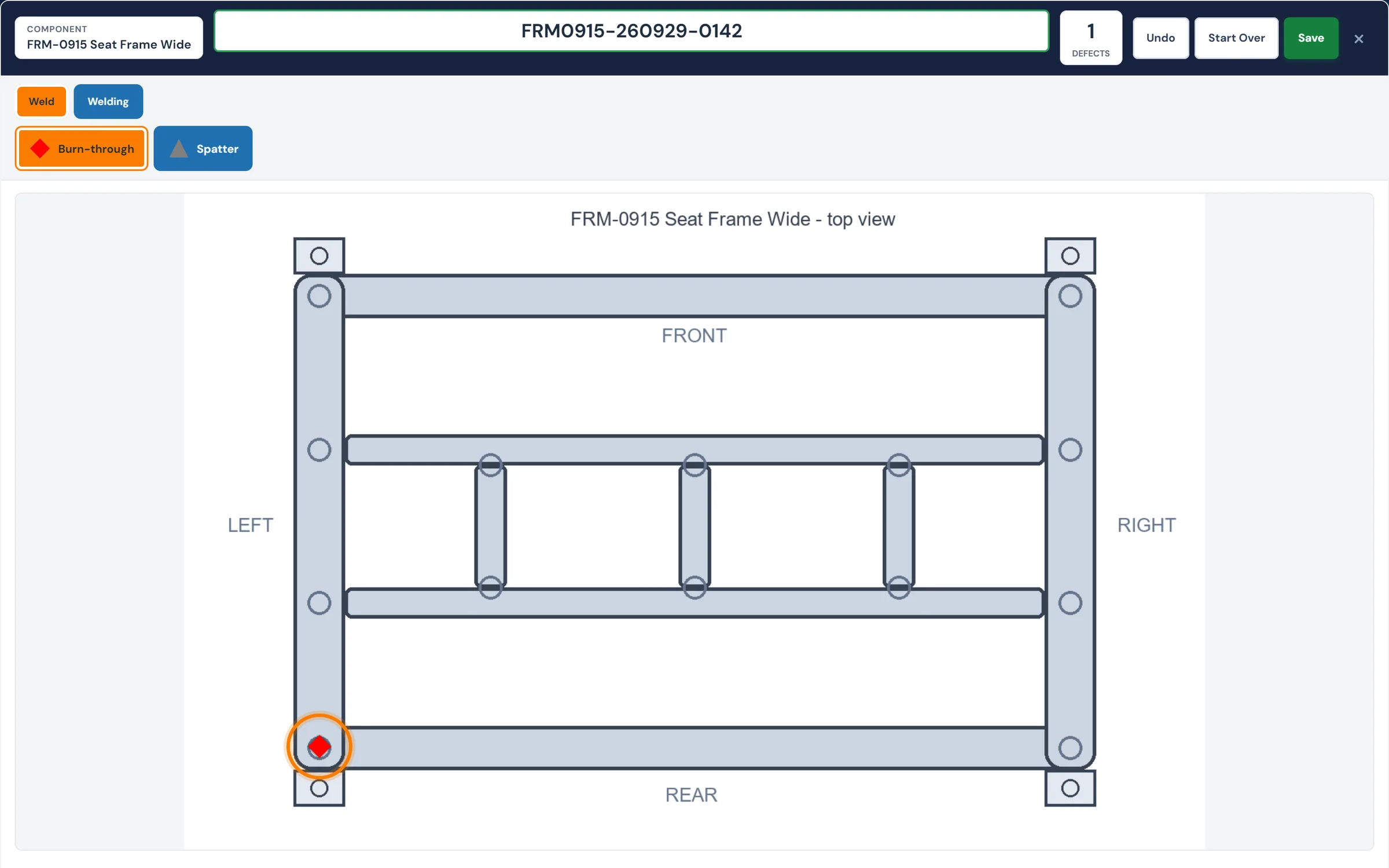
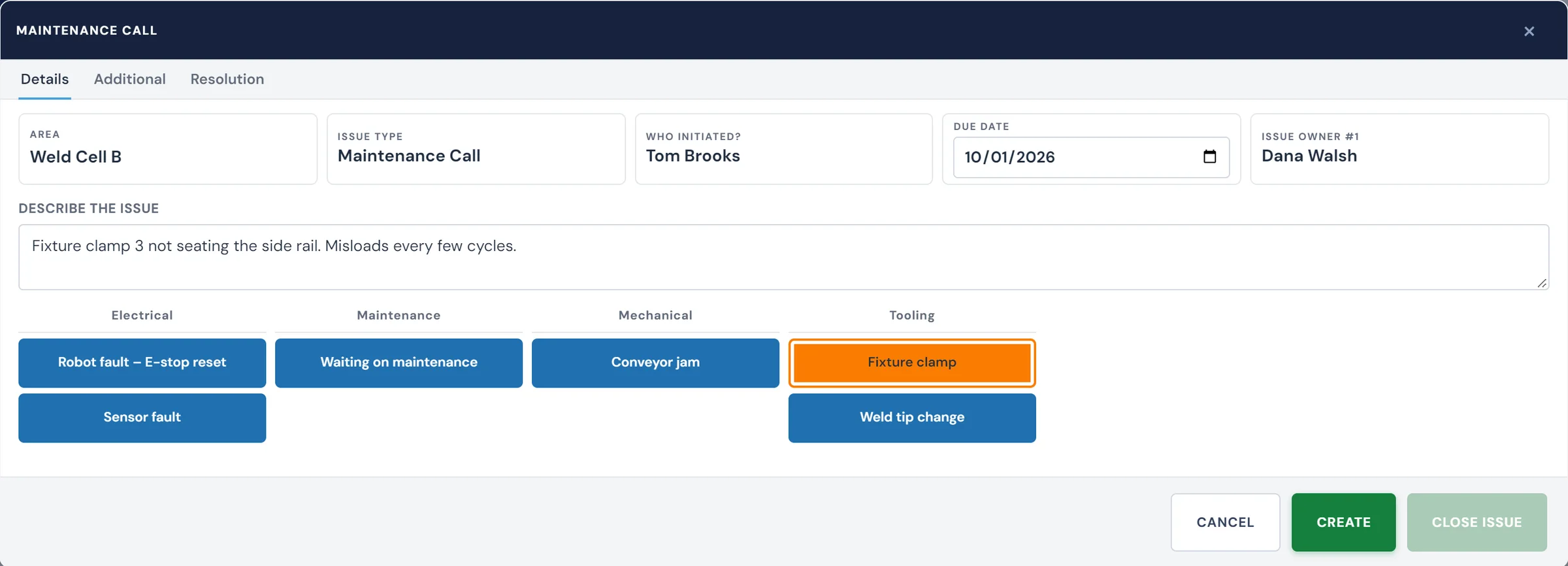
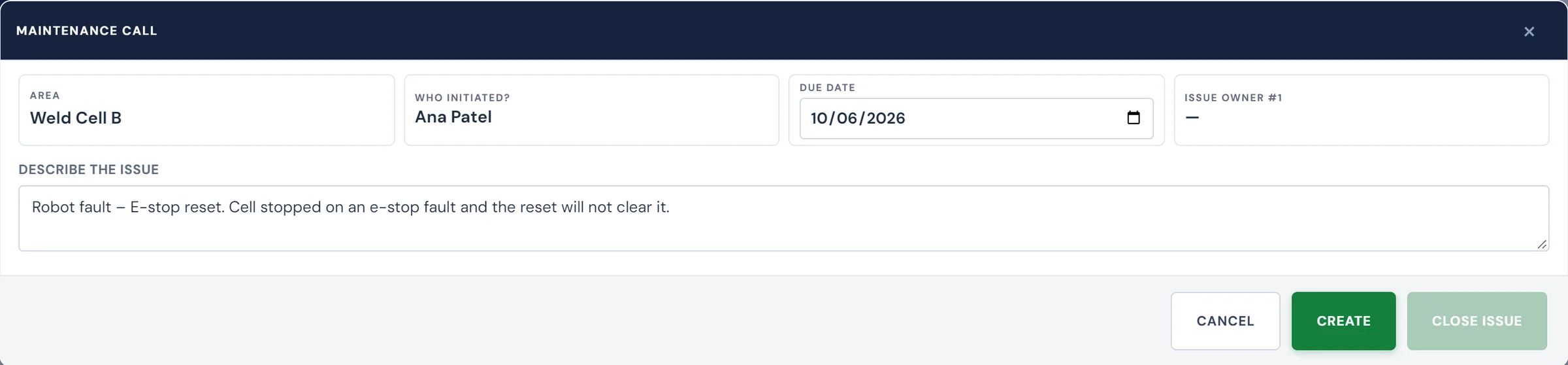
Eight things operators do without leaving the console.
Annotate downtime
The console registers the stop as it happens, and the operator picks the reason from the list set up for that line.
Record scrap and rework
One big button for each scrap code this line produces. Counts go straight into production reporting, so nobody enters them a second time.
Perform scheduled quality checks
The console prompts operators when a check is due, captures the result, and won't let them dismiss it without entering a value. Out-of-spec entries trigger holds automatically.
Raise issues to maintenance
A leaking hose, a worn fixture, a bad sensor — the operator raises it once from the console. It lands in the Issues Tracker, gets assigned, and the operator can see status without leaving their station.
Activate andon calls
One tap calls the supervisor, materials, maintenance or quality. Each call is timestamped, tied to the line and closed with a reason, so the record shows why the line waited as well as how long.
View the live production board
Hour-by-hour actual vs. target, right at the station. Operators see how the shift is going without waiting for a 4 p.m. printout.
See real-time SPC charts
For lines running SPC, the latest measurements show on the console with control limits drawn in. Operators see drift before it becomes a failure.
View work instructions and schedule
The current product's work instructions, the upcoming changeover, the sequence of jobs for the shift — pulled in from your ERP or schedule, displayed without a separate login.
The console at the press isn't the same as the one at packout.
Generic screens are one reason operators give up on a console, so each one is set up for its own station.
One console, configured per station
Each console gets its own downtime codes, scrap categories and scheduled checks for the line or machine it sits at. We configure it during deployment; you can change it later without code changes.
Turn off the features that aren't relevant
Only some lines run SPC, and fewer need a visual inspection screen. Screens are switched on or off per deployment, so the console you put in front of an operator only shows the buttons and screens they use.
Runs on the screens you already have
Touch monitor mounted at the line, ruggedized tablet on a cart, a shared kiosk between two machines — the console runs in a web browser on standard PCs and works with industrial touch screens. There's no proprietary hardware to buy and no per-seat licensing.
Every tap goes straight into the platform, with nothing re-typed.
The console and the rest of the 10in6 platform share one database, so there is no integration step between an entry at the line and the report that uses it.
- Downtime reasons → Production Reporting & OEE
- Scrap counts → Scrap by Component & rolled OEE
- Andon calls → Real-time visibility boards
- Scheduled quality checks → Audit-ready history
- SPC entries → Control charts & alerts
- Visual inspection → Defect tracking by station
- Operator-raised issues → Maintenance work orders
- Equipment-level history → Reliability reports
- Maintenance checks → PM compliance
The console is the difference between a system that gets used and one that gets exported to Excel.
Operators enter the data, so they own it
Ask a plant on its third MES rollout in ten years what went wrong, and the answer is usually good-looking dashboards that operators ignored. On the console the operator enters the data, so the numbers on the hour-by-hour board are the ones they put there.
Reasons you can rank
Reasons copied from paper hours later come back vague and logged against the wrong times. Coded at the stop from the line's own list, each reason is tied to the stop it explains, so Production Reporting can rank them.
15+ years of operator console deployments
10in6 has been refining this interface since 2008. The button sizes, the screen flow and the way downtime gets coded were each settled by operators on real floors, tapping a button or refusing to.
Touch-first, but works without
Built for gloved fingers on an industrial touch screen, and just as usable with a mouse at an engineering station. The same console runs on every form factor — no separate "mobile" version to maintain.
Operator consoles running in production today





What makes an operator console easy to use
Whether a console gets used has less to do with features than with how much effort each entry takes at the moment it's needed. Six things decide it, whichever system you choose.
| Principle | What it looks like on the floor | What goes wrong without it |
|---|---|---|
| Short lists for this line | The eight or ten downtime reasons this press has, instead of the plant's full list | Operators pick the first plausible reason, or "Other", and the data stops meaning anything |
| Big targets | Buttons sized for a gloved finger, readable from a step back | Mis-taps, and a screen people avoid touching |
| Prompts, not memory | The console shows an uncoded stop or a check that's due | Entries made at the end of the shift, from memory, by someone guessing |
| Status at a glance | Hour-by-hour actual vs target, open calls and issues on the same screen | A second system to look things up, so nobody does |
| One login | A PIN or badge tap, and every action is tied to the operator | Shared logins and anonymous entries nobody can follow up on |
| One tap for help | Call maintenance, quality, materials or a supervisor without leaving the station | Walking to find someone while the line waits |
Test it before rollout: give an operator the console on a real shift and time how long it takes to code a stop. If it's more than a few seconds, the list is too long or the screen is too busy.
Common questions
What is an operator console in manufacturing?
It is the screen at a machine or line where operators record what happens during the shift: downtime reasons, scrap, quality checks, calls for help and notes, with the shift's progress against target in view. It sits alongside the machine's HMI, which controls the equipment. The console captures what happened and why, so production data comes from the people who saw it.
What makes an operator console easy to use?
Short lists configured for that line instead of plant-wide dropdowns, big buttons that work with gloves, prompts when something is due rather than relying on memory, status visible at a glance, one login for everything, and a one-tap way to call for help. If entering data is slower than ignoring it, operators will ignore it.
Is the Operator Console a separate product, or part of an existing module?
It's the operator-facing surface for the entire 10in6 platform. The same console is where operators enter downtime (MES), record scrap (MES), perform quality checks (DQS), and raise maintenance issues (CMMS). Operators use one screen and one login for all of it.
Do we need a touch screen?
No. It's designed for touch, and most customers deploy it that way, but it runs just as well with a mouse and keyboard on a regular PC, which suits engineering stations and supervisor offices. Buttons are sized for finger taps, and nothing is lost by clicking instead.
How do we configure which buttons appear on which line?
Screens, buttons, downtime codes, scrap codes, and which features are enabled are all configured per line or per machine. Most customers make routine changes themselves; we handle the initial configuration during deployment.
Can the same console serve two machines?
Yes. A kiosk between two machines is a common pattern — the operator picks which line they're entering data for. We also support one console per machine, and consoles on shared carts that move between cells.
How does the operator log in?
Most deployments use a short PIN, badge scan, or RFID tap — whatever the customer already uses on the floor. The login ties downtime reasons, scrap entries, and issues back to the operator without making them type their full name every action.
Does this replace our ERP?
No. The console is a shop-floor execution interface. It pulls schedule and work instructions from your ERP when relevant, and pushes production counts back, but the ERP stays the ERP. Shop-floor entry happens on the console because the ERP wasn't built for it, and making operators use ERP screens is part of why they stop entering data.
What if the line stops and nobody codes the downtime?
The console treats uncoded downtime as a visible debt — the red "Annotate Downtime" button shows the minutes accumulating. Supervisors can see at a glance which stoppages haven't been coded. You can also configure rules, for example paging the supervisor after 5 minutes uncoded.
How does it handle changeover?
When the line changes products, the console picks up the new part number from the schedule, updates work instructions, swaps in the right downtime codes if they differ by product, and tracks changeover time as its own loss category. Operators don't have to remember to flip anything.
Can multiple operators share a console?
Yes. Several operators can be signed into a line simultaneously, and downtime / scrap / quality entries are attributed to whoever performed the action. Shift change is handled with a clean sign-out/sign-in flow.
How long does deployment take?
A focused first console — one line, the standard set of buttons, downtime and scrap codes already defined — typically goes live in two to four weeks. Multi-line rollouts take four to eight weeks, and consoles tied into ERP for work instructions and scheduling take longer again, since the integration is usually the longest part.
Set up around how your plant runs
Standardized platforms expect the plant to change to fit the software. Do-it-yourself platforms leave your team to build and maintain everything. With 10in6, we configure the system around your equipment, codes and reports, and your team runs it day to day.
Your equipment, codes and reports
Your stations, positions and shift rules, the skills your plant tracks, and a console at each station showing only what that line uses.
Your team runs it day to day
Operators, downtime and scrap codes, products and targets, shift schedules, checks, alerts, emailed reports and real-time boards are managed by your own people. Everyday changes need no support ticket and no invoice.
A project manager for the bigger things
New machines, new modules and custom reports go through a 10in6 project manager who already knows your deployment, so nothing starts from scratch. If you would rather we made everyday changes too, we can.
Still here years later
The system keeps being refined after go-live, and new capabilities are added without rebuilding it. Some of our customer relationships have run for 12 years, and 97% of customers say they would never go back.
“Our 10in6 Project Manager has been very responsive and the software is flexible enough to be configured to our specific needs.”
How the 10in6 delivery model works →
See it running on your line.
Tell us what your operators record today and on which machines. On a free 30–60 minute call, one of our engineers will work out what the console would look like at your press, your packout or your assembly cell.
- No prep needed.
- Priced per asset.
- Bring your equipment list if you have one.